This tutorial shows you how to work with the Combine Files features in Acrobat 9. See what the all-new Acrobat DC can do for you.
Download a free trial of the new Acrobat.
Interacting with geospatial PDFs in Acrobat 9
Learn how to find locations, measure distances, and add location markers in a geospatially enabled PDF using Acrobat 9.
By Adobe – June 18, 2009

When you open a geospatially enabled PDF, you can find locations, measure distances, and add location markers. You can also copy coordinates to the clipboard for use with a web mapping service.
View the geospatial measuring tools by choosing Tools > Analysis > Show Analysis Toolbar.
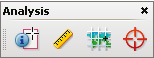
Geospatial tools on the Analysis toolbar.
Use the Geospatial Location tool to perform these tasks:
- View latitude and longitude while the cursor is over an area containing geospatial information.
- Mark a location with a geospatial annotation.
- Search for a location in a document.
Find map locations
- Open a geospatial PDF and choose Tools > Analysis > Geospatial Location tool

Mark geospatial locations
- Open a geospatial PDF and choose Tools > Analysis > Geospatial Location Tool .
- Move the mouse pointer over the document to view latitude and longitude values of areas that contain geospatial information. Right-click inside the map, and then do one of the following:
-
To find a location, click Find A Location. Type the latitude and longitude values, and click Find.
-
To mark a location with geospatial information, click Mark Location.
-
- (Optional) To add a comment (such as a place name or address), click the location marker, and then add the information in the comment box.
Measure distance, perimeter, and area on maps
When you open a geospatial PDF, the Acrobat measuring tools read the geospatial information and measure distance and area instead of page or object dimensions. Use the measurement tools to calculate distance, perimeter, and area on any geospatially enabled PDF. As you move the mouse pointer over content in the document, snap markers are shown that indicate that you are on a path or path end point. You can also see the latitude and longitude of your cursor location when the mouse pointer is over geospatial content.
- Choose Tools > Analysis > Measuring Tool

- In the Measurement Tool display, select a measurement type: Distance
 , or Perimeter
  .
. - Select a snap-to option:
-
Snap to paths

-
Snap to end points

-
Snap to midpoints

-
Snap to intersections

-
- Do one of the following:
-
If you are using the Distance tool, click where you want to start the measurement, and then drag to the end point and click again. The distance is displayed in the lower-right corner.
-
If you are using the Perimeter tool, click the map in one corner of the perimeter, and then drag to each corner. Click at each corner and then double-click at the end point. The information window displays the perimeter size.
-
If you are using the Area tool, click the map at one corner of the area, and then drag to another corner. Click before changing directions. Double-click at the end to display the total area.
-
- To finish the measurement, right-click and select Complete Measurement. Or, select Cancel Measurement.
Copy location coordinates to the clipboard for use with a web mapping service
After you find a location on a geospatial PDF, you can copy the coordinates to the clipboard. From the clipboard, you can paste the data into a web mapping service that reads latitude and longitude coordinates.
- Choose Tools > Analysis > Geospatial Location Tool , and then right-click the location on the map.
Change measurement units within a document
To change the type of measurement units, right-click inside the map with the Measuring tool and choose Distance Unit or Area Unit. Then select a measurement type.
Products covered: |
Acrobat 9 |
Related topics: |
Combine Files |
Top Searches: |
Create PDF combine files into one PDF Rearrange PDF pages |
Try Acrobat DC
Get started >
Learn how to
edit PDF.
Ask the Community

Post, discuss and be part of the Acrobat community.
Join now >
0 comments
Comments for this tutorial are now closed.
Comments for this tutorial are now closed.