
Looking for more help on How to Edit PDF?
- Consult the How to Edit interactive guide.
- Ask a question in our forum.
- You can leave a comment below for the author of this tutorial.
After downloading Acrobat 9 Pro Extended and creating a presentation (from PowerPoint) with Adobe Presenter 7, you’ll see that there is no preview. Instead there is a blank white page in the preview (see Figure 1).
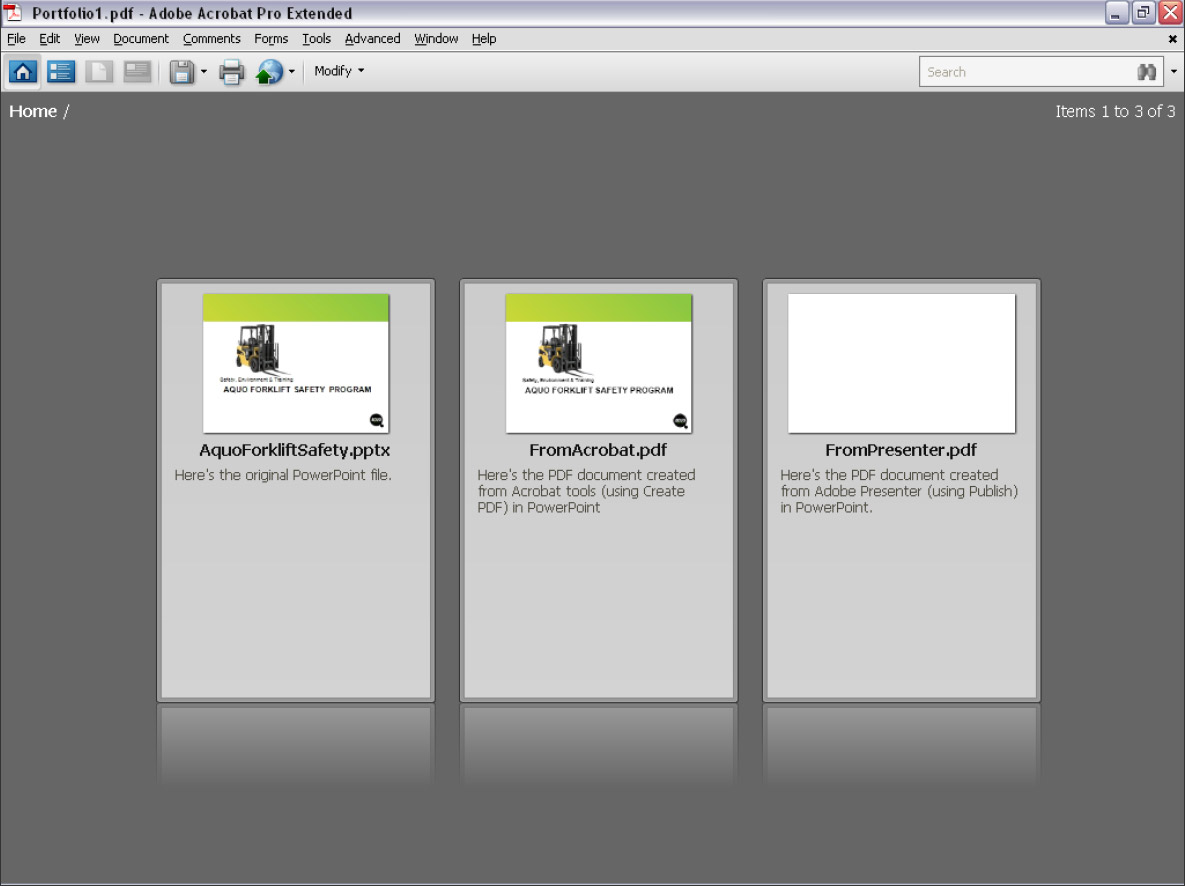
Figure 1: Notice that the PowerPoint and the PDF document created from Acrobat have a preview, but the document created from Adobe Presenter does not.
See larger image
To create a preview, just make a single one page PDF (typically of your first slide) and then use select Document > Replace Pages in Acrobat and select the one-page PDF that you want to be the preview.
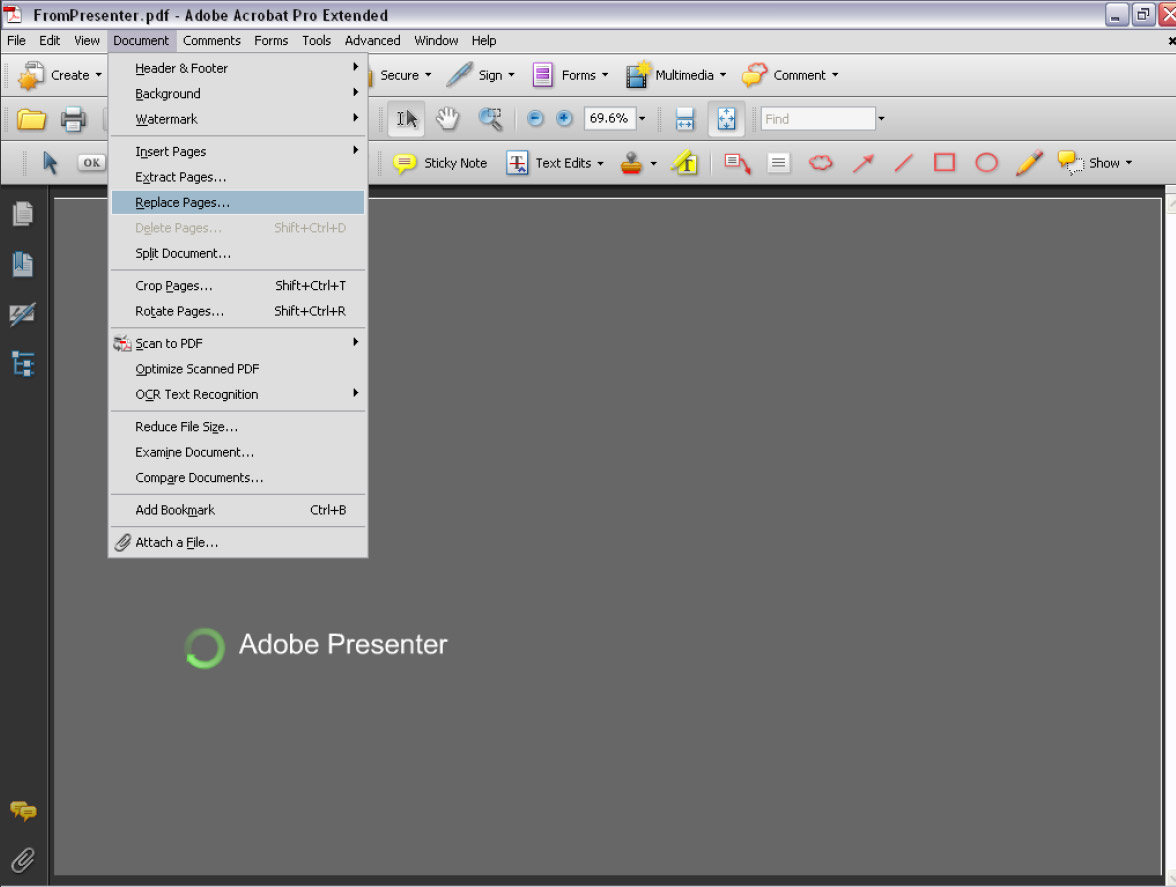
Figure 2: Select Document > Replace Pages in Acrobat to create a preview
See larger image
Next, save the file and now it will appear with a preview – in the operating system and/or in a PDF Portfolio.
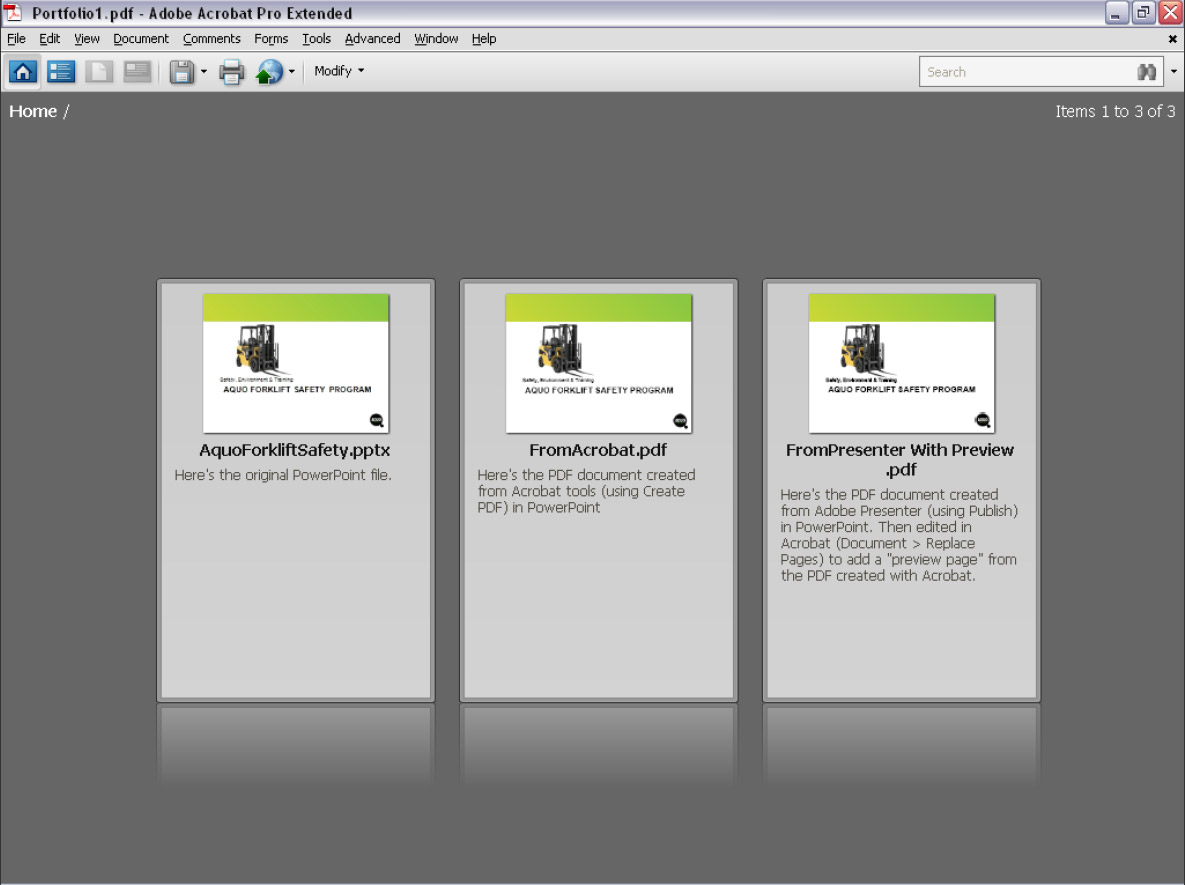
Figure 3: All documents now have a preview displayed
See larger image
Products covered: |
Acrobat 9 |
Related topics: |
Edit PDFs |
Top Searches: |
Edit PDF files convert PDF to Word convert PDF to Excel convert PDF to PowerPoint Rearrange PDF pages Convert PDF to JPEG |
Try Acrobat DC
Get started >
Learn how to
edit PDF.

Post, discuss and be part of the Acrobat community.
Join now >
0 comments
Comments for this tutorial are now closed.
Comments for this tutorial are now closed.