This tutorial shows you how to work with the PDF Forms features in Acrobat 9. See what the all-new Acrobat DC can do for you.
Download a free trial of the new Acrobat.
Designing online forms for auto field detection using Acrobat 9
Learn how to create online forms more easily by taking advantage of automated features in Acrobat 9.



In this tutorial, learn how to create online forms (sometimes called HTML forms or Web forms) more easily by taking advantage of automated features in Acrobat Std. or Pro. version 9.
Adobe Acrobat software has the ability to recognize form fields, making it faster and easier to create dynamic forms in PDF. If you follow some basic guidelines when designing electronic forms in authoring programs, such as Adobe InDesign or Microsoft Word, you can significantly improve the auto field detection process.
The auto field detection feature uses an algorithm to determine when field objects can be created in a form. The algorithm can process electronic forms from scanned documents and certain native document files. The detection process looks for the following types of form design elements:
- Underlines and boxes for fill-in areas
- Check boxes
- Radio buttons
- Signature areas
- Comb fields
- Tables for fill-in areas
Auto field detection does not process combo boxes (sometimes called drop-down lists), list boxes, and barcodes.
By following certain form design practices during the authoring process, you can significantly improve the auto field detection results and substantially reduce the time it takes to develop interactive PDF forms.
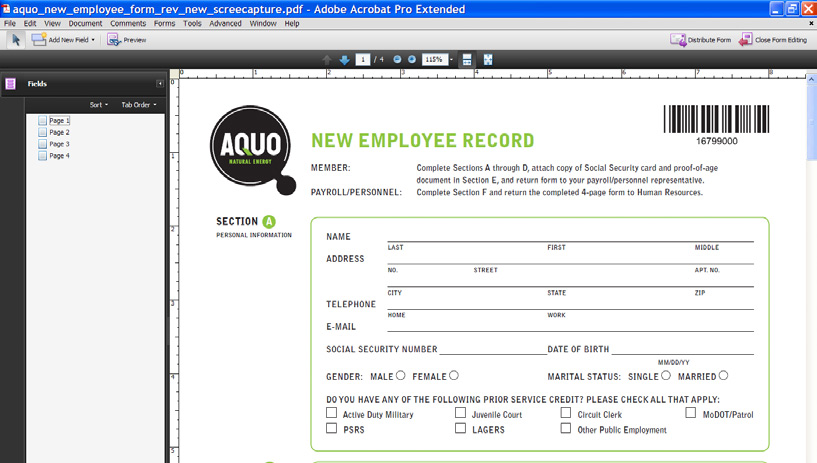
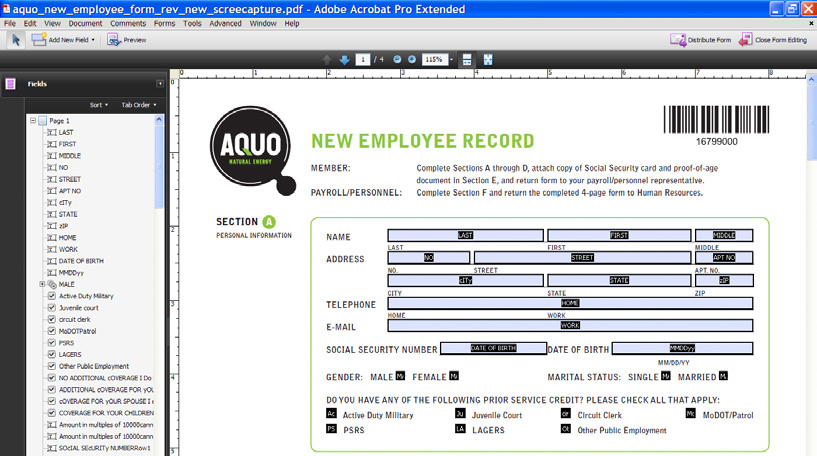
Results of running auto field detection on a file that has no existing form fields
The auto field detection process
Auto field detection was significantly improved in Acrobat 9 and the 9.1 update. To initiate the auto field detection process on an existing PDF in Acrobat 9 choose Forms > Add or Edit Fields. In Acrobat 8 Professional, this feature was initially introduced as Run Form Field Recognition (Forms > Run Form Field Recognition).
Next, a dialog box opens and prompts you to decide whether to run auto field detection. Clicking Yes starts the automatic field detection process.
PDF documents that originate from scanned images automatically go through optical character recognition (OCR) first. Running OCR does not modify the original content—the content still appears as an image. The page only changes in the addition of form field annotations. The auto field detection process can look for text including special characters, such as boxes, circles, and horizontal lines, from fonts such as Zapf Dingbats, Wingdings, and Webdings. Graphic objects that are used to design forms, such as horizontal and vertical lines and stroked rectangles, are also analyzed in scanned documents.
To process native documents, such as Word or InDesign files, for auto field detection, open the file using the Acrobat 9 Form Wizard (Forms > Start Form Wizard) and select “An existing electronic document” in the Create or Edit Form dialog box. The Form Wizard will convert the document to PDF and auto detect form fields in one step.
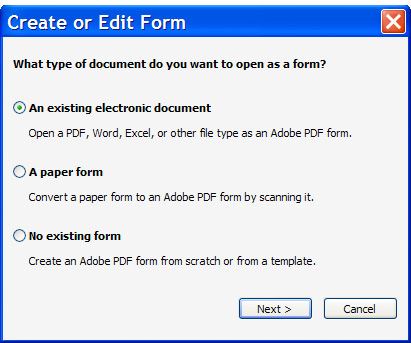
Wizard dialog box
In existing PDF files (or native files that have been converted to PDF), the auto field detection process looks for the same objects as scanned documents, as well as rectangles (hollow and filled), diagonal lines forming a diamond-shaped appearance, and curved lines forming a circular appearance.
After form field detection, field names are assigned to each object. For objects such as underlines, text boxes, and check boxes, the text adjacent to the form field is used as the name. For radio buttons, group labels are used to determine the field names. Field names in a table are based on information inside the cell or in the column header.
After the form fields are named, the actual form fields are created and the tab order is set based on the interpreted reading order of the form. If the PDF is tagged for accessibility, new annotations are added to the structure tree.
Basic design layout considerations
The auto field detection process looks for certain basic form design elements. To help improve the process, here are some general tips to consider when authoring a form.
- Keep it simple and uncluttered—use ample white space or separator lines between areas.
- Keep your layout well-organized so the field tab order is set properly.
- Keep text within a 10–24-point size range.
- Avoid drop shadows or ornate graphics on text labels.
- Avoid overlapping fields, especially within areas that use underlines.
- Avoid heavy decorative graphics or transparency on the page. See www.peachpit.com/article/article.aspx?p=1271249 for tips on simplifying visually complex forms.
- Use white as the primary background color; avoid putting text on top of colored rectangles.
- Use the same style for each type of form object.
- Do not use the same text label across multiple fields.
- Make sure custom fonts use the proper encodings. In Acrobat 9 Pro or Acrobat 9 Pro Extended, you can use the Preflight tool to determine this.
Design considerations for specific form objects
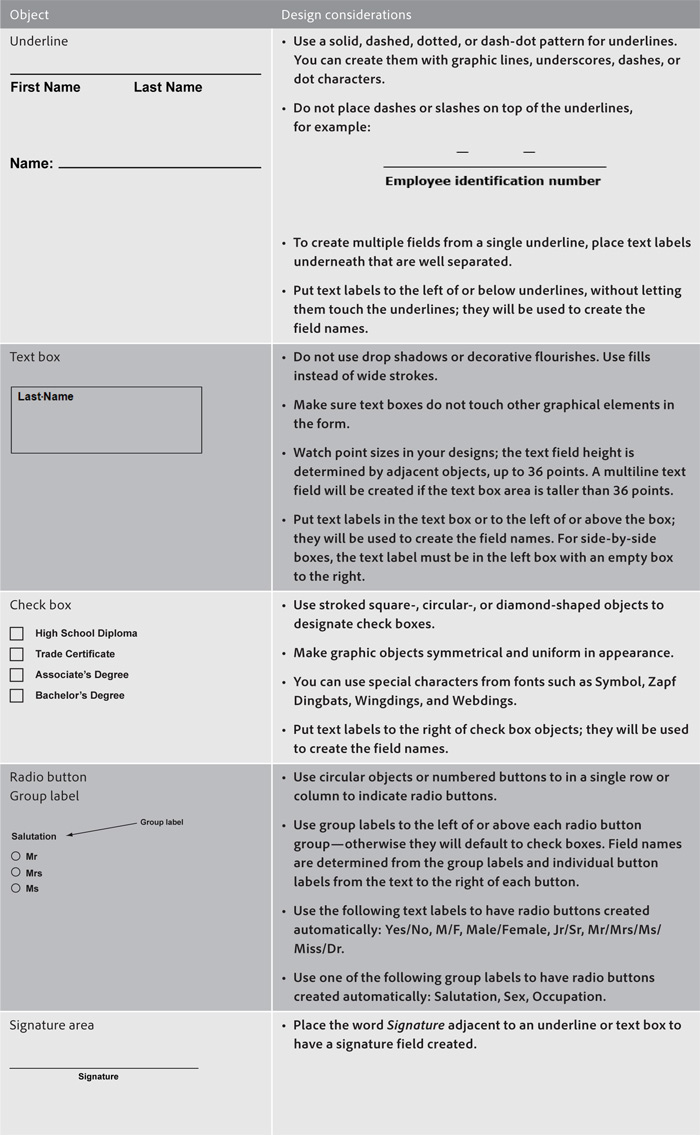
The auto field detection feature looks for specific objects to convert to form fields. For example, underlines, text boxes, and clearly delineated tables are converted to text fields. By default, text fields are created with the font size set to Auto, which means text in the field will shrink to fit the field as data is entered. The default font is Helvetica. Stroked square-, circular-, or diamond-shaped objects indicate check boxes. Circular objects or numbered buttons adjacent to specific text labels indicate radio buttons, and the word signature is interpreted as a digital signature field. When creating specific form objects during the form authoring process, review the following suggestions to improve auto field detection.
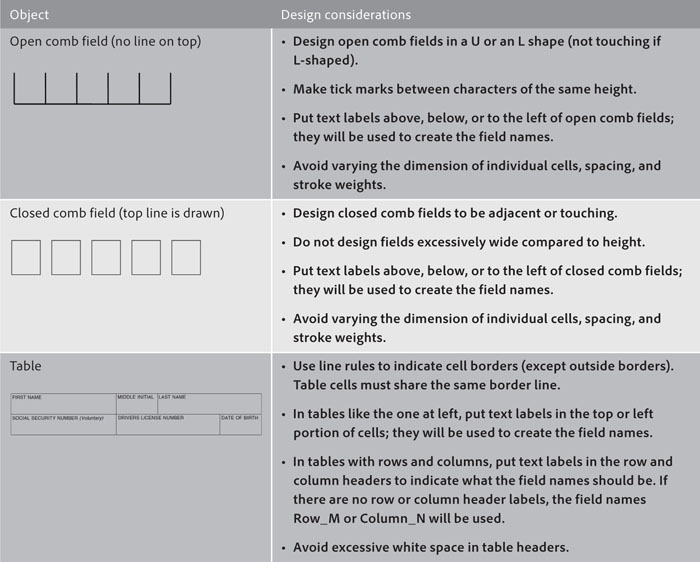
Although auto field detection can significantly reduce the time it takes to create an interactive form, not all forms are suited for this feature. For forms that contain complex tables (with rows and columns that are calculated), using hierarchical field names (such as total.0, total.1, and so on) makes it easier to calculate formulas as well as duplicate and rename fields. Since the auto field detection process names the form fields based on text labels next to the form objects, the field names are not hierarchical. Therefore, if you have a form that requires hierarchical field names, you should manually insert them.
Troubleshooting
After running the auto field detection process on a form, check it to make sure the correct fields have been created. You might need to perform some manual steps to complete the form. For example, date and numeric fields are not automatically detected. Use Form Editing mode to add, edit, or delete fields.
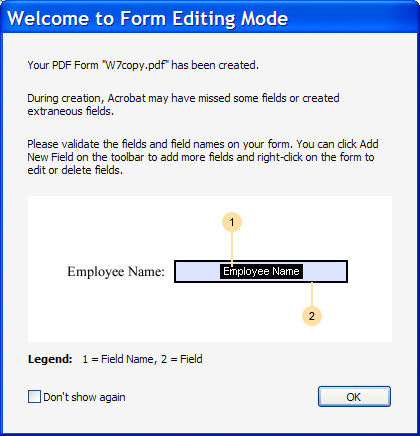
Dialog box that appears when auto field detection is complete
If auto field detection does not run on a particular form, review these troubleshooting tips:
- If you’re having difficulty with a particular page, try using Document > Extract Pages, and then running auto field detection on the rest of the document.
- Make sure your document is not enabled for Adobe Reader software. If it is, use the File > Save a Copy command to remove Reader enabling prior to running auto field detection.
- Make sure your form does not have a security setting that prevents changes to the PDF. To check, choose File > Properties and review the Security tab.
- Check whether the form was created using a PDF/A setting. This setting also prevents changes to the PDF. To check, open the Navigation pane and see if the Standards navigation panel and icon appear.
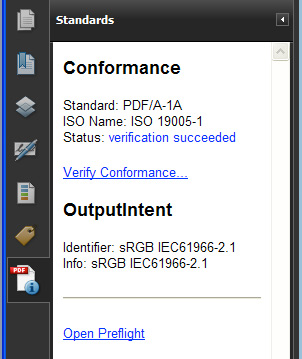
Standards navigation panel
- Certain metadata or document structures can interfere with the auto field detection process. Use the Examine Document feature (Document > Examine Document) in Acrobat to remove any unnecessary content.
- If the document already has a few form fields, delete them before running auto field detection. Save the PDF prior to deleting the fields to avoid losing any unsaved work. You can delete form fields from the Fields navigation panel, which is available only while in Form Editing mode.
Once you have created a form with the help of auto field detection, you may find the need to update the form at some point. Rather than starting from scratch, consider using the Document > Replace Pages command in Acrobat to update pages as needed as a substantial time-saver.
Creating interactive PDF forms does not have to be a daunting task. By following some basic guidelines during the form design stage, you can make auto field detection in Acrobat do much of the work and significantly reduce the time it takes to produce your forms.
Download tutorial [PDF, 1MB]
Products covered: |
Acrobat 9 |
Related topics: |
Sign Microsoft Word documents, Create electronic signatures, Create digital signatures, PDF Forms |
Top Searches: |
Online signature Online contractsConvert existing forms to fillable PDFs fill and sign PDF online |
Try Acrobat DC
Get started >
Learn how to
edit PDF.
Ask the Community

Post, discuss and be part of the Acrobat community.
Join now >
7 comments
Comments for this tutorial are now closed.
Lori Kassuba
4, 2015-12-30 30, 2015Hi Shani,
There is no automatic way to do this in Acrobat but some 3rd party tools like this one may help:
http://try67.blogspot.com/2010/10/acrobat-convert-form-fields-type.html
Thanks,
Lori
Shani
6, 2015-12-28 28, 2015I cannot seem to find an easier way to make check boxes in adobe acrobat pro when formatting an excel spreadsheet. I have over 40 pages to do and would prefer not to do these manually? Any suggestions would be greatly appreciated!
Lori Kassuba
7, 2015-11-19 19, 2015Hi Shawn,
You need to change the radio button to a square manually under the Options tab in the form field properties.
Thanks,
Lori
Shawn Bromen
8, 2015-11-12 12, 2015What is a stroked square? I can’t get Adobe to detect a check box. Everything converts to a radio button. Thanks!
Lori Kassuba
5, 2014-06-24 24, 2014Hi Michael,
Unfortunately it’s a manual process to change text fields to dropdowns.
Thanks,
Lori
Michael
8, 2014-06-19 19, 2014I have created a form in word that imports nicely into acrobat using the auto field detection. However, it classifies all of my fields as text fields and I need for some of them to become dropdowns. Is there no way to manually change the field type?
Lori Kassuba
5, 2013-06-26 26, 2013Gaile Bee,
Unfortunately this is the default when running the Auto-field detect feature. One good thing in Acrobat XI is that you can select all the checkbox fields in the Fields panel bring up the Properties dialog and change them all in one step.
Thanks,
Lori
Gaile Bee
2, 2013-06-21 21, 2013I want the default for check boxes to be a check mark, not a square. It’s very time consuming to keep changing these each time I create a new document.
Lori Kassuba
1, 2013-04-15 15, 2013Hi Debi,
Can you post your form question here so our experts can help you?
http://answers.acrobatusers.com/AskQuestion.aspx
Thanks,
Lori
Debi Phillips
10, 2013-04-04 04, 2013How can I format a document that automatically inserts dates after the initial date is typed. Form is a time sheet for a two week period, so if the pay period starts 4/1/2013, the next date should automatically post 4/2/2013 and so on.
Please advise.
Comments for this tutorial are now closed.