This tutorial shows you how to work with the Protect PDFs features in Acrobat 9. See what the all-new Acrobat DC can do for you.
Download a free trial of the new Acrobat.
Apply passwords and set permissions with Acrobat 9
Learn how to easily password protect PDF files and set permissions to control printing or prevent changes.
By Adobe – April 8, 2009

Ever get nervous about sharing sensitive information? Your work is too important to let just anyone view or alter it. Thankfully, with Adobe Acrobat 9, it's easy to password protect PDF files and set permissions to control printing or changes— so you can feel confident your work is protected.

Find the lock icon in the Tasks toolbar.
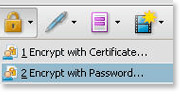
Select Encrypt with Password from the pull-down menu.
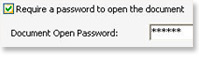
Select Require a password to open the document and enter your preferred password.
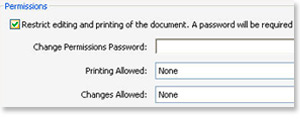
You can also set permissions to restrict printing, editing or document changes.
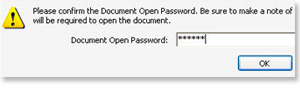
And finally, confirm your password(s) and click OK.
Products covered: |
Acrobat 9 |
Related topics: |
Protect PDFs |
Top Searches: |
Apply PDF passwords and permissions get electronic signatures from others sign and send documents |
Try Acrobat DC
Get started >
Learn how to
edit PDF.
Ask the Community

Post, discuss and be part of the Acrobat community.
Join now >
9 comments
Comments for this tutorial are now closed.
Lori Kassuba
3, 2015-02-20 20, 2015Hi angela,
Open the File Properties (File > Properties) and select the Security tab. It should have Password security selected. Change this to No Security.
Thanks,
Lori
angela
8, 2015-02-17 17, 2015I receive .pdf files with password to open from our tax preparer. How do I save the file without password or change to different password after I open it with password? I went to Security settings but can’t find where to delete the password. I don’t want to print it out then scan it and save with new password. Thanks.
Lori Kassuba
8, 2015-01-05 05, 2015Hi M.L.Jaiswal,
Yes, you’ll need Acrobat and not just the free Reader to set a security password on a PDF file.
Thanks,
Lori
M.L.Jaiswal
7, 2015-01-03 03, 2015Very Essy to set password on Adobe Reader..Thanks
Lori Kassuba
5, 2014-08-15 15, 2014Hi eric,
The ability to apply a password is only available in Acrobat and just the free Reader. You can use Reader to open a PDF that has a password but you’ll need to know the password to open the file.
Thanks,
Lori
eric
5, 2014-08-15 15, 2014how do i open adobe reader 9 and use the password.
Lori Kassuba
5, 2013-04-01 01, 2013Hi Teri Johnson,
In the print dialog, with the PDF printer selected click on the Properties button. What setting is selected under the Default Settings dropdown? Make sure it is a setting that embeds fonts—like Standard.
Thanks,
Lori
Teri Johnson
4, 2013-03-26 26, 2013Lori,
My tax and accounting software (CCH-ATX tax software, Quickbooks and Peachtree Accounting) we can run a report and click the PDF button within the software and it then creates a PDF. In my tax software I actually click print and then chosse the pdf printer…... It is those that now get garbled when applying a password. It never did it before Acrobat 9. I have been passwording for a couple years now. However, when I scan a document directly using my Fujitsu Scansnap and Acrobat 9 it seems to work. The taxes are two many pages to print then scan…..would take too much time….....The other issue I notice is when I open a document now and add a comment it says it is read only and I have to do a save as and rename it to have the comment saved. Never had to do that before either. Seems Acrobat 9 is slowing me down this tax season with these issues.
Lori Kassuba
4, 2013-03-26 26, 2013Hi Teri,
Can you be more specific on how your PDF document is created? Are you using Acrobat or a different tool?
Thanks,
Lori
Teri J
5, 2013-03-24 24, 2013Same thing is happening to me - and it did not happen prior to using version 9….I notice if I actually scan a document and then set a password it does not garble the fonts..but if I save a document as pdf from within a program and then set a password it garbles…I need a fix fast…
Lori Kassuba
8, 2013-02-19 19, 2013Hi Laurie,
I’m not sure what you mean by garbled. Do you mean that the fonts don’t display properly? If so, try removing the password and re-applying using a different compatibility setting.
Thanks,
Lori
Laurie
3, 2013-02-15 15, 2013I did this and now the document I password protected is garbled. I do not see any information on the site about this.
Comments for this tutorial are now closed.