“Where is” series, entering page Actions
Learn how to enter page Actions that are triggered by the opening and closing events on a PDF page in the viewer.
By Thom Parker – July 7, 2006


Scope: Acrobat Professional 6.0 and greater
Skill Level: Beginner
Prerequisites: Familiarity with Acrobat Professional
Page Actions are triggered by the opening and closing events on a PDF page in the viewer. These Actions are primarily useful for starting and stopping page related interactive features such as multimedia, timers, and animations, but the way in which these actions can be used is only limited by the imagination of the document developer.
Although this tip is specifically about JavaScript actions, there are several different types of actions that can be activated by one of the Page events (open or close). These actions are identical to actions available to the Field Widget events (Mouse Up, Mouse Down, and so on.), the Link Annotation event, and the Bookmark event. The Run a JavaScript action is just one of the total set of built-in PDF actions. These actions can be stacked up so one event trigger runs a series of actions, allowing JavaScript to be mixed in with other action types. This configuration gives document designers greater flexibility than they would have with JavaScript alone.
The opening event of a page refers to the point at which the page’s number becomes visible in the Navigation bar at the bottom of the page, not the point at which the page is actually visible to the user. Figure 1 shows a document in Continuous page mode. In this mode it is possible for part of a page to be visible on the screen, but not be the current page. In the figure, the page 3 Page Close action and the page 4 Page Open action will trigger immediately after Page 4 becomes the current page (i.e., when Page 4 is displayed in the Navigation bar). The Page Close action is triggered first, followed by the Open action for the next page.
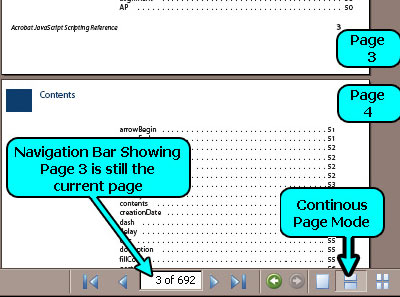
Figure 1 – Trigger Point for the Page Open and Close Actions
Accessing Page Action Scripts
The Page Actions are accessed from the Page Properties Dialog. This dialog is only available from the Pages Navigation Tab, which is typically displayed on the left hand side of the Acrobat Viewer. Use the following steps to create or modify a Page Action.
1. If it is not already visible, the Pages Navigation Tab can be enabled from the following menu item (Figure 2):
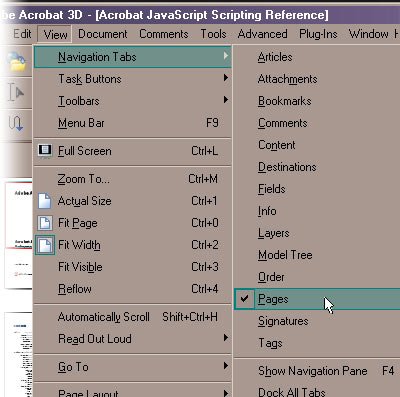
Figure 2 – Displaying the Pages Navigation Tab from the menus using View>Navigation Tabs>Pages
2. To display the Page Properties Dialog (Figure 3):
- Select a page in the Pages Navigation Tab.
- Either right click on the page or click on the Options button to display the popup menu.
- Select Page Properties from the bottom of the menu.
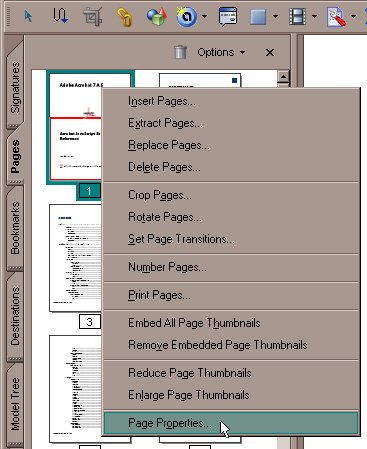
Figure 3 – Displaying the Page Properties Dialog from the Pages Menu
3. On the Page Properties Dialogs select the Actions tab (Figure 4).
4. To create a new JavaScript Action:
- First select the trigger, either Page Open or Page Close.
- Select the Run a JavaScript Action.
- Click on the Add… button to display the JavaScript editor.
5. To edit an existing JavaScript Action:
- From the list of existing actions select Run a JavaScript from underneath the Action you want to edit.
- Click on the Edit… button to display the JavaScript editor.
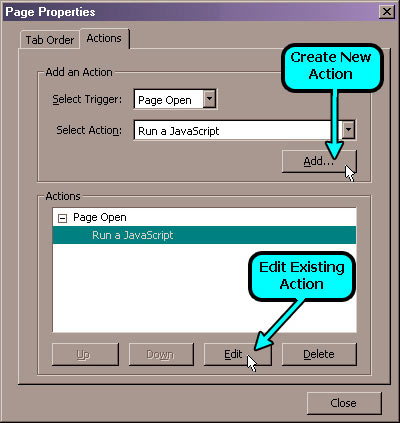
Figure 4 – Creating and editing JavaScript Page Actions
Products covered: |
Acrobat XIAcrobat XAcrobat 9 |
Related topics: |
JavaScript |
Top Searches: |
Edit PDF create PDF Action Wizard |
Try Acrobat DC
Get started >
Learn how to
edit PDF.
Ask the Community

Post, discuss and be part of the Acrobat community.
Join now >
0 comments
Comments for this tutorial are now closed.
Comments for this tutorial are now closed.